

Every day, people sit through meetings, lectures, interviews, and voice notes, and then they need the words in text. A student needs lecture notes. A journalist needs an interview transcript. A small business needs a record of a client call. A YouTuber needs captions. Typing it all out by hand takes hours. In 2026, free AI transcription tools can do it in minutes. You upload a recording or let the tool join your meeting, and you get a written transcript with speaker names and timestamps.
This guide looks at the best free AI transcription tools in 2026. Every tool in this list can turn speech into text without paying. We will explain what each tool does, what its free plan gives you, how to use it step by step, who it is best for, and what its honest limits are. We will not hide the limits. A free plan always has limits, and it is better to know them before you start.
First, one important difference. This article is about transcription, which means speech to text. You speak or play a recording, and you get written words. That is the opposite of text to speech, where you type words and the tool reads them out loud. Our earlier guide, Best Free AI Text to Speech Tools in 2026, covers that direction. If you need a voice for your video, read that guide. If you need words from a recording, you are in the right place.
This article is for you if you record meetings, lectures, interviews, podcasts, or voice notes, and you want the text without typing it yourself. You do not need any technical skills for most of these tools. All of them work in a web browser or on your phone, and most of them take only a few minutes to set up. One tool, Whisper, is different. It is a free open-source model that runs on your own computer. It is powerful and completely private, but it needs some technical setup. We explain that clearly in its section.
One important note before we start. Free plans change. A company can change its free plan at any time. The limits in this article were checked in November 2026, but you should always check the official site for the latest price and the latest free plan details before you decide.
How to Choose the Right Free Transcription Tool
There are many transcription tools. You do not need all of them. You need the right one or two. Before you sign up for anything, ask yourself four simple questions.
1. What are you transcribing? A live meeting and an uploaded audio file are two different jobs. Some tools only record live meetings. They join your Zoom or Google Meet call and write down what everyone says. Other tools only take uploaded files. You give them an MP3 or a video, and they give you back text. A few tools do both. If you mostly need meeting notes, pick a meeting tool like Fathom, Otter.ai, or Fireflies.ai. If you mostly need to transcribe recordings you already have, pick a file tool like TurboScribe or Descript. If you need both, use one of each.
2. How long is your audio? Free plans are measured in minutes. Some give you 300 minutes a month. Some give you 3 files a day. Some give you unlimited transcription but limit something else, like storage. A 30-minute meeting is easy. A 3-hour lecture is hard on a free plan. Work out how many minutes you need each month, and then check the limit. If you only need one or two short recordings a week, almost any free plan will work. If you need hours every day, you will need the most generous free plan, or two tools used together.
3. Do you need speaker names and timestamps? A plain block of text is fine for a short voice note. But for a meeting with four people, you need to know who said what. Most tools in this guide add speaker labels and timestamps. Google Docs voice typing does not. It is dictation for one person, not a meeting tool. If you need speaker names, pick a real transcription tool.
4. Is it a free plan or just a free trial? This is the most important question, and it is where many people get caught. A free plan resets every month and never expires. A free trial is a fixed amount that runs out once and never comes back. In this guide, 9 tools have a permanent free plan. Three tools, Sonix, Happy Scribe, and Transkriptor, have only a one-time trial. They are still useful for testing, and we say so clearly in their sections, but do not build your weekly routine on a trial. It will run out.
Here is a simple rule. Start with one meeting tool and one file tool. That is enough. Use them for two weeks. Then decide what is missing. Most people find that two free tools cover everything they need. You do not need to pay for anything until you transcribe for hours every week.
In This Guide
- Otter.ai
- Notta
- Fireflies.ai
- Fathom
- TurboScribe
- Descript
- Rev
- Sonix
- Happy Scribe
- Transkriptor
- Whisper (OpenAI)
- Google Docs Voice Typing
Best Free AI Transcription Tools at a Glance
| Tool | Best For | Free Plan | Main Strength |
|---|---|---|---|
| Otter.ai | Meetings with live transcription | 300 min a month, 30 min per meeting | Joins Zoom, Meet, and Teams automatically |
| Notta | Short voice notes and clips | 120 min a month, 3 min per recording | Fast, simple, 58 languages |
| Fireflies.ai | Meeting transcription with search | Unlimited transcription, 400 min storage per team | Search all your past meetings |
| Fathom | Unlimited free meeting notes | Unlimited recordings and transcription | Most generous free plan |
| TurboScribe | Uploaded audio and video files | 3 files a day, up to 30 min each | Best free plan for files |
| Descript | Editing audio and video by editing text | 1 media hour a month | Edit by deleting words |
| Rev | Accurate transcripts with a human backup | 45 AI min a month, English only | Human transcription at $1.99 a minute |
| Sonix | Testing accuracy on one file | Trial only: 30 min, one time | Great editor, 54+ languages |
| Happy Scribe | Subtitles and translation in 150+ languages | Trial only: 10 min, one time | Best language coverage |
| Transkriptor | High-volume file transcription | Trial only: 90 min, one time | 100+ languages, cheap paid plans |
| Whisper (OpenAI) | Free, private, unlimited transcription | Free forever, runs on your computer | No minute limit, nothing uploaded |
| Google Docs Voice Typing | Free dictation while you write | Completely free, no limit | Built into Google Docs |
Free plans change often, so check the official website of each tool for current free limits before you start a big project.
1. Otter.ai
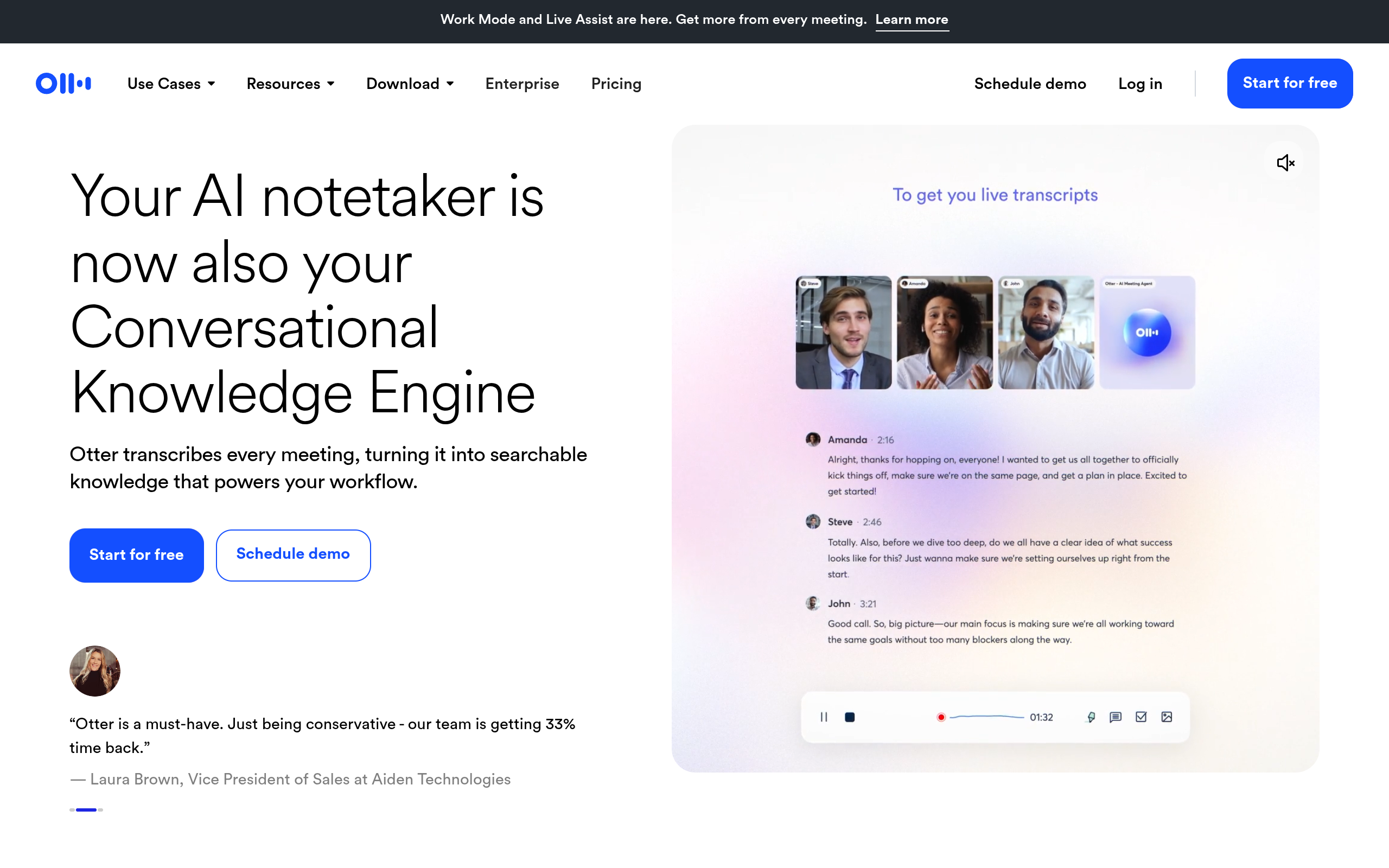
Otter.ai is one of the most popular AI meeting notetakers. It joins your Zoom, Google Meet, or Microsoft Teams meeting, records it, and writes a live transcript while people are still talking. When the meeting ends, you get a full transcript with speaker names, a summary, and action items. You can search your old meetings, so if someone said a price or a date three weeks ago, you can find it in seconds.
Otter has a free Basic plan. The free plan gives you 300 transcription minutes a month. That is 5 hours. But there is a second limit that matters more. Each conversation stops at 30 minutes. So a 45-minute meeting will only be transcribed for the first 30 minutes on the free plan. You also get only 3 file imports for the whole life of your account. That means you can upload only 3 audio or video files ever, on the free plan. After that, you can only record live meetings. And you can only see your 25 most recent conversations. Older ones are hidden unless you pay. You also get 20 AI Chat questions a month, which lets you ask Otter questions about your meetings, like "What did we decide about the price?"
Otter is a good choice if your meetings are short. If most of your calls are 20 to 30 minutes, 300 minutes a month covers about 10 meetings. That is enough for many students and small teams. If your meetings are long, the 30-minute cap will frustrate you, and Fathom is a better free choice.
One warning about privacy. Otter works by sending a bot into your meeting. Everyone in the meeting can see the bot join. That is good, because people should know they are being recorded. But it also means you should tell people before the meeting that Otter will be there. In August 2025, a lawsuit was filed against Otter, saying its bot recorded people without their consent and used recordings to train its models. Otter says it has consent controls. The safe rule is simple. Always tell people you are recording, and get their agreement first.
Key Features:
- Joins Zoom, Google Meet, and Microsoft Teams automatically and transcribes live
- Speaker identification, so you know who said what
- Searchable transcripts and AI summaries with action items
- Works on the web and on iOS and Android apps
- Ask Otter questions about your meetings with AI Chat
Best for: A student or small team whose meetings are 30 minutes or shorter and who wants live transcription with search
Free plan: Free Basic plan with 300 transcription minutes a month, 30 minutes maximum per conversation, 3 file imports for the life of the account, only the 25 most recent conversations visible, and 20 AI Chat questions a month. No credit card needed. Pro costs $16.99 a month, or $8.33 a month billed yearly. Students and teachers get 20% off Pro. Check the official site for current free limits.
How to Use Otter.ai Step by Step:
- Go to otter.ai and create a free account with your email.
- Connect your calendar, so Otter can see your Zoom, Google Meet, or Teams meetings.
- Turn on auto-join, so the Otter bot joins your meetings by itself. Or join a meeting and start recording by hand.
- During the meeting, Otter writes the transcript live. You can add notes and highlight important parts.
- After the meeting, open the transcript. Read the summary, check the action items, and share the link with your team. Remember, the free plan only keeps your 25 most recent conversations, so export anything important.
Watch out for: The 30-minute cap per conversation is the real limit. A 45-minute meeting will be cut off. You also get only 3 file uploads ever on the free plan, so do not waste them on test files. And always tell people the Otter bot is joining, so everyone knows the meeting is being recorded.
2. Notta

Notta is an AI meeting notetaker that turns your meetings, interviews, or lectures into searchable text. It works in 58 languages, and it can record a live meeting, transcribe an uploaded file, or even record a voice note on your phone. It also makes summaries, so you can read the main points without reading the whole transcript.
The free plan gives you 120 transcription minutes a month. That sounds good. But there is a catch that changes everything. Each recording is capped at 3 minutes. That means no recording on the free plan can be longer than 3 minutes. A 40-minute lecture will only be transcribed for the first 3 minutes. So the free plan is really a demo, not a working plan. You also get 10 AI summaries a month and 50 file uploads a month, but every file is still cut at 3 minutes. And you cannot download or export your transcripts on the free plan. You can only read them on screen.
Notta is useful on the free plan for one thing only. Short clips. If you have a 2-minute voice note, a short interview answer, or a quick idea you recorded on your phone, Notta will transcribe it well, and you can test the accuracy for free. For anything longer, you need the paid plan. Pro costs $13.99 a month, or $8.17 a month billed yearly, and it gives you 1,800 minutes a month with recordings up to 5 hours, plus transcript export and translation.
Key Features:
- Records live meetings and transcribes uploaded audio and video files
- Works in 58 languages, with speaker identification
- AI summaries, so you can read the main points fast
- Works on the web, on your phone, and with a Chrome extension
- Custom vocabulary, so it learns your names and special words, on paid plans
Best for: Testing transcription on short clips of under 3 minutes, or someone who only needs very short voice notes transcribed
Free plan: Free plan with 120 transcription minutes a month, but every recording is capped at 3 minutes. You also get 10 AI summaries a month and 50 file uploads a month, but you cannot export or download transcripts. No credit card needed. Pro costs $13.99 a month, or $8.17 a month billed yearly. Check the official site for current free limits.
How to Use Notta Step by Step:
- Go to notta.ai and create a free account with your email.
- Click Record to record a short voice note, or upload an audio or video file under 3 minutes.
- Pick the language of your recording before you start. Notta supports 58 languages.
- Wait a few moments while Notta transcribes your recording. Read the transcript on screen.
- Use one of your 10 free AI summaries a month to get the main points. Remember, you cannot download the transcript on the free plan, so copy the important parts by hand if you need them.
Watch out for: The 3-minute cap per recording is the whole story. The 120 minutes a month sounds generous, but no single recording can pass 3 minutes, so a real meeting or lecture will not fit. And without export, you cannot save your transcript as a file. Treat the free plan as a test, not as a tool for daily work.
3. Fireflies.ai

Fireflies.ai is an AI meeting assistant. It sends a bot into your Zoom, Google Meet, or Microsoft Teams call, records it, transcribes it, and writes a summary. After the meeting, you can search all your past meetings, ask the AI questions about what was said, and share the notes with your team. It works in more than 100 languages.
The free plan is unusual, because it gives you unlimited transcription. There is no monthly minute limit. What it limits instead is storage. The free plan stores only 400 minutes of meetings for your whole team. That is about 6 to 7 hours of calls in total. When you pass 400 minutes, your oldest recordings roll off and disappear. So you can transcribe as much as you like, but you can only keep about 7 hours of history. You also get 20 AI credits for extra AI features, and AI summaries are limited on the free plan. Meetings can be up to 2 hours long. You cannot download your transcripts or recordings on the free plan. That starts on Pro.
Fireflies is a good choice if you have a few meetings a week and you do not need to keep old ones forever. If you meet for 2 hours a week, 400 minutes of storage lasts about 3 weeks. After that, you need to export or delete old meetings, or pay for Pro. Pro costs $18 a month, or $10 a month billed yearly, and it raises storage to 8,000 minutes per seat, with unlimited AI summaries and downloads.
One new thing to know. In November 2026, Fireflies launched Fred, a new AI teammate for messages. The homepage now leads with Fred. The meeting notetaker still works the same way, but the company is adding new AI features around it. The free plan details above are for the meeting transcription, which is what this guide is about.
Key Features:
- Bot joins Zoom, Google Meet, and Microsoft Teams and transcribes automatically
- Unlimited transcription on the free plan, in more than 100 languages
- Search all your past meetings and ask the AI questions about them
- AI summaries, action items, and speaker identification
- Works with Slack, Notion, HubSpot, and other tools on paid plans
Best for: A team that has a few meetings a week, wants unlimited transcription, and does not need to keep months of old recordings
Free plan: Free forever plan with unlimited transcription, but only 400 minutes of storage for the whole team, 20 AI credits, limited AI summaries, and meetings up to 2 hours. No downloads on the free plan. No credit card needed. Pro costs $18 a month, or $10 a month billed yearly. Check the official site for current free limits.
How to Use Fireflies.ai Step by Step:
- Go to fireflies.ai and create a free account with your email.
- Connect your calendar, so Fireflies can see your Zoom, Google Meet, or Teams meetings.
- Turn on auto-join, so the Fireflies bot joins your meetings by itself.
- After the meeting, open your Fireflies dashboard. Read the transcript and the summary.
- Use the search box to find anything said in any of your past meetings. Remember, your storage is only 400 minutes for the team, so check your oldest meetings and delete or export them before they roll off.
Watch out for: Storage is the real limit. 400 minutes for the whole team means about 7 hours of calls, and then old recordings disappear. AI summaries are limited on the free plan, and you cannot download transcripts without paying. If you need to keep a full history, this free plan will not work for you.
4. Fathom

Fathom is an AI notetaker for video calls. It records your Zoom, Google Meet, or Microsoft Teams meeting, transcribes it, and writes an instant summary when the call ends. It also makes short clips of the important moments, so you can share one key answer without sending the whole meeting. It works in 38 languages.
The free plan is the most generous in this whole guide. You get unlimited recordings, unlimited transcription, and unlimited storage, all for free, forever. There is no monthly minute limit and no storage limit. The only real limit is on the AI summaries. You get advanced AI summaries for your first 5 calls each month. After that, you still get a summary, but only the basic General or Enhanced template. AI action items, follow-up emails, and the Ask Fathom assistant are paid features. But the core job, recording and transcribing your meetings, is completely free and unlimited.
Fathom is the best free choice for meetings. If you have 20 meetings a month, or one very long meeting, Fathom will still transcribe all of them for free. That is why it is number one in this guide for meeting notes. Premium costs $20 a month, or $16 a month billed yearly, and it adds advanced summaries on every call, AI action items, and Ask Fathom.
One change to know about. In September 2026, Superhuman, the email company, acquired Fathom. The company says Fathom still works the same for now, with the same app and the same login. The free plan has not changed. But because a bigger company now owns it, the free plan could change in the future, so it is worth checking the official site from time to time.
Fathom also has a bot-free mode, which is in beta on Mac. Normally, a bot joins your call and everyone can see it. In bot-free mode, Fathom records from your own computer without a bot in the call. That is useful if you do not want a bot visible in your meetings. It is still in beta, so it may not work perfectly yet.
Key Features:
- Unlimited recordings, transcription, and storage on the free plan
- Instant AI summaries, clips, playlists, and search across your calls
- Works on Zoom, Google Meet, and Microsoft Teams
- Bot-free recording mode in beta on Mac, so no bot joins your call
- Transcribes in 38 languages
Best for: Anyone who records meetings often and wants the most generous free plan, with no minute limit and no storage limit
Free plan: Free forever plan with unlimited recordings, unlimited transcription, and unlimited storage. Advanced AI summaries cover only your first 5 calls each month. After that, you get the basic General or Enhanced summary template. AI action items, follow-up emails, and Ask Fathom need Premium. No credit card needed. Premium costs $20 a month, or $16 a month billed yearly. Check the official site for current free limits.
How to Use Fathom Step by Step:
- Go to fathom.ai and create a free account. Download the Fathom app for Mac or Windows.
- Connect your calendar, so Fathom can see your Zoom, Google Meet, or Teams meetings.
- Join your meeting. Fathom records and transcribes it. You can pick bot capture, or try the bot-free mode on Mac.
- When the call ends, Fathom writes a summary in a few seconds. Read it, and check the action items.
- Use the search box to find anything from any past call. Make a clip of an important moment and share it, instead of sending the whole recording.
Watch out for: Advanced AI summaries stop after your first 5 calls each month. After that, you only get the basic summary. If you need advanced summaries on every call, or AI action items and follow-up emails, you need Premium. And remember, Fathom only records live meetings. It does not transcribe uploaded files, so for old recordings you need a file tool like TurboScribe.
5. TurboScribe

TurboScribe is a simple website that turns audio and video files into text. There is no meeting bot and no app to install. You upload a file, and a few minutes later you get a transcript with speaker names and timestamps. It is powered by OpenAI Whisper, and it works in more than 98 languages. The site says it has transcribed more than 58 million hours, and it claims 99.8% accuracy on clear audio.
The free plan is the best free plan for uploaded files in this guide. You get 3 transcripts a day, and each file can be up to 30 minutes long. That is up to 90 minutes a day, or about 45 hours a month, if you use it every day. You do not need a credit card. The limits are that you can only upload one file at a time, and your free files wait in a slower queue behind paid users, so you wait longer for your transcript. But for most people, 3 files a day is more than enough.
TurboScribe is the right tool when you already have the recording. A lecture recording, a podcast episode, an interview, a voice note, a video file. If it is under 30 minutes, you can transcribe it for free today. If it is longer than 30 minutes, split it into parts, or use a different tool. The paid plan, Unlimited, costs $20 a month, or $10 a month billed yearly, and it removes all limits. Files can be up to 10 hours and 5 GB, you can upload 50 files at once, and you get translation into more than 134 languages.
Key Features:
- Uploads audio and video files and returns accurate transcripts in minutes
- Works in more than 98 languages, with speaker recognition
- 3 free transcripts a day, each up to 30 minutes, with no credit card
- Transcripts include timestamps and speaker labels
- Translation into more than 134 languages on the paid plan
Best for: A student, journalist, or creator who has recorded audio or video files and wants to transcribe them for free, up to 3 files a day
Free plan: Free plan with 3 transcripts a day, each file up to 30 minutes, one upload at a time, and lower processing priority. No credit card needed. Unlimited costs $20 a month, or $10 a month billed yearly. Check the official site for current free limits.
How to Use TurboScribe Step by Step:
- Go to turboscribe.ai and create a free account with your email. No credit card is needed.
- Click to upload your audio or video file. It must be under 30 minutes on the free plan.
- Pick the language of your recording. TurboScribe supports more than 98 languages.
- Wait while TurboScribe transcribes your file. Free files take longer, because paid files go first in the queue.
- Read your transcript. Check the speaker names and the timestamps. Download it as a text, Word, or subtitle file. Remember, you get 3 free files a day, so save your third slot for your most important file.
Watch out for: TurboScribe only handles uploaded files. It does not join live meetings, and it does not record your screen. Files over 30 minutes will not work on the free plan, and free files wait longer in the queue. If you need to transcribe a 2-hour lecture in one go, split it into 30-minute parts, or use Fathom to record it live instead.
6. Descript

Descript is different from every other tool in this guide. It is not just a transcription tool. It is an audio and video editor that works from a written transcript. You upload a recording, Descript transcribes it, and then you edit the video by editing the text. Delete a sentence in the transcript, and that part disappears from the video. Cut a boring part of the text, and the video is cut too. It is the fastest way to edit a podcast or a video if you hate timelines.
The free plan gives you 1 media hour a month. That is 60 minutes of audio or video you can upload and transcribe each month. You also get 100 AI credits, given one time only, not every month. Those credits pay for AI tools like Studio Sound, which cleans up bad audio, and filler-word removal, which deletes all the "ums" and "uhs". Video exports on the free plan are limited to 720p and carry a Descript watermark. That matters for video, but it does not matter for a text transcript. Your transcript itself is clean.
One important detail. On the current plans, transcription itself is not metered. What you pay for is media time. Every minute of audio or video you upload counts against your 1 hour, whether you transcribe it or not. So a 2-hour raw interview costs 2 hours of media time, even if you only keep 10 minutes of it. The free plan is enough to test the workflow on one short project a month. Hobbyist costs $24 a month, or $16 a month billed yearly, and it gives you 10 media hours a month, 400 AI credits a month, and 1080p exports with no watermark.
Descript transcribes in more than 25 languages. It also translates captions into 61 languages and can dub your voice into 30 languages, but those are paid features. For a free user, the best use is simple. Transcribe one short recording a month, edit it by editing the text, and export the transcript or the finished video.
Key Features:
- Edit audio and video by editing the transcript text
- Automatic transcription in more than 25 languages
- Studio Sound cleans up noisy audio, and filler-word removal deletes "ums" and "uhs"
- Captions, subtitles, and transcript export
- Works on Mac, Windows, and the web
Best for: A podcaster, YouTuber, or video creator who wants to edit recordings by editing words, not by cutting a timeline
Free plan: Free plan with 1 media hour a month, 100 AI credits given one time only, 720p video exports with a watermark, and 5 GB of storage. No credit card needed. Hobbyist costs $24 a month, or $16 a month billed yearly. Check the official site for current free limits.
How to Use Descript Step by Step:
- Go to descript.com and create a free account. Download the app or use the web version.
- Start a new project and upload your audio or video file. It must fit in your 1 media hour a month.
- Wait while Descript transcribes your file. The transcript appears as text on your screen.
- Edit by editing the text. Delete a sentence to cut that part from the recording. Fix a wrong word by typing the right one.
- Export your transcript as a text file, or export your video. Remember, free video exports are 720p with a watermark, so if you need a clean video, use the transcript and edit the video somewhere else.
Watch out for: The 1 media hour a month is small. One long recording can use it all. And the 100 AI credits are one-time, not monthly, so use them carefully. Three files with filler-word removal can use 90 credits. Also, do not judge Descript only as a transcription tool. If you only need text and never edit video, TurboScribe gives you far more free minutes.
7. Rev

Rev is one of the oldest names in transcription. It started as a human transcription service, and it still offers that. What makes Rev special is that it gives you both choices. You can get a fast AI transcript, and if the machine gets it wrong, you can send the same file to a real human transcriber. No other tool in this guide offers that backup.
The free plan gives you 45 AI transcription minutes a month, in English only. That is not a lot. It is about one short meeting. You also get 1 user and up to 5 files analysed at a time. You can upload files or use the AI Notetaker to record a meeting. AI transcription costs $0.25 a minute if you pay as you go, with a claimed accuracy of 95% or more, delivered in about 5 minutes.
The human service is where Rev wins. Human transcription costs $1.99 a minute, with a claimed accuracy of 99% or more, delivered in 12 hours or less. That is expensive, but it is the right choice when the transcript must be perfect, for example a legal deposition, a medical record, or an interview you will publish as a quote. AI transcription costs $0.25 a minute if you pay as you go, with a claimed accuracy of 95% or more, delivered in about 5 minutes.
One change to know. Rev now focuses on legal and investigative work. Its homepage talks about case files, body camera footage, jail calls, and depositions. It offers CJIS compliance and a Clio integration for law firms. That does not matter for a normal user, but it explains why the paid plans are more expensive than other tools. Rev is built for professionals who need a transcript that can stand up in court.
Key Features:
- AI transcription in about 5 minutes, plus human transcription at 99% claimed accuracy
- The only tool in this guide that lets you escalate a file from AI to a human
- AI Notetaker for Google Meet, Teams, and Zoom
- Timestamps, speaker labels, and an interactive editor
- HIPAA, CJIS, and SOC 2 Type II compliance for sensitive work
Best for: A professional who needs a transcript that must be right, and wants a human backup when the AI is not good enough
Free plan: Free plan with 45 AI transcription minutes a month, English only, 1 user, and up to 5 files analysed at a time. No credit card needed. Essentials costs $29.99 per seat a month, or $25.49 a month billed yearly. Human transcription costs $1.99 a minute. Check the official site for current free limits.
How to Use Rev Step by Step:
- Go to rev.com and create a free account.
- Upload your audio or video file. It must be in English, and it must fit in your 45 free minutes a month.
- Wait about 5 minutes for the AI transcript. Read it and check the accuracy.
- If the transcript is good enough, download it. If the machine clearly got important parts wrong, click to send it for human transcription instead.
- For meetings, turn on the AI Notetaker, so Rev joins your Google Meet, Teams, or Zoom call and takes notes for you.
Watch out for: 45 minutes a month is small, and it is English only. If you need another language, or more than 45 minutes, you will need to pay. Essentials is expensive compared to other tools, but that is because Rev is built for legal and professional work, not for casual use.
8. Sonix

Sonix is an AI transcription platform that turns uploaded audio and video files into text. It is known for accuracy and for its editor. The AudioText Editor plays your audio under every word, so you can click on a word in the transcript and hear exactly how it was said. It also finds contradictions and patterns across many files, which is why lawyers and researchers like it. It works in more than 54 languages, and it can translate your transcript into more than 54 languages too.
Now the honest part. Sonix has no permanent free plan. New accounts get 30 free minutes, one time, with no credit card. After those 30 minutes are gone, you must pay. Pay as you go costs $10 per hour of transcription. Premium costs $22 per user a month, plus $5 per audio hour. Core costs $25 a month and includes 5 hours. So Sonix is not a free tool. It is a paid tool with a free test.
So why is it in this guide? Because those 30 free minutes are genuinely useful for one job. Testing accuracy. Upload your hardest file, the one with accents, noise, or technical words, and see how well Sonix does. If it gets it right, and other tools do not, then you know it is worth paying for. If it does not, you have learned that for free. That is a fair test, and it is worth 30 minutes.
Do not plan your weekly work around Sonix unless you are ready to pay. The 30 minutes will be gone after one file, and there is no monthly reset. If you need a free tool for regular use, use Fathom for meetings or TurboScribe for files. Use Sonix for the one file that must be right.
Key Features:
- Accurate transcription with speaker labels and word-level timestamps
- AudioText Editor that plays the audio under every word while you correct it
- Finds patterns and contradictions across many files
- Transcription and translation in more than 54 languages
- Exports in more than 18 formats, including Word, PDF, SRT, and VTT
Best for: Testing transcription accuracy on one hard file, or a researcher or lawyer who needs to search across many files and is ready to pay
Free plan: Trial only. New accounts get 30 free transcription minutes, one time, with no credit card. There is no permanent free plan and no monthly reset. After the trial, pay as you go costs $10 per hour, Premium costs $22 per user a month plus $5 per hour, and Core costs $25 a month for 5 hours. Check the official site for current prices.
How to Use Sonix Step by Step:
- Go to sonix.ai and create a free account. No credit card is needed.
- Upload your hardest file, up to 30 minutes. Pick the file that will test the accuracy best, not an easy one.
- Wait about 3 minutes for a 30-minute file. Sonix is about 10 times faster than real time.
- Open the AudioText Editor. Click on any word to hear the audio for that word. Fix any mistakes.
- Export your transcript in the format you need, for example Word, PDF, or SRT subtitles. Remember, after 30 minutes, the free trial is over, and you will need to pay to transcribe more.
Watch out for: There is no free plan, only a 30-minute trial. Do not upload an easy file first and waste your trial. Use your hardest real recording, so you learn whether Sonix is worth paying for. And do not build a routine on Sonix unless you have a budget for it.
9. Happy Scribe

Happy Scribe is an all-in-one platform for transcription, subtitles, and translation. It takes an audio or video file and gives you back a transcript, subtitles for your video, and a translation into another language, all in one place. It works in more than 150 languages, which is the widest language coverage in this guide. That makes it useful for creators who work in many languages, and for anyone who needs subtitles in a second language.
The free plan is not really a free plan for files. You get 10 free minutes, one time, for transcription, subtitles, and translation. That is a trial, not a monthly plan. There is no permanent free plan for files. On the free plan, you can record unlimited meetings up to 45 minutes each, which is more useful than the file trial, and you can translate up to 200 words a day. MP4 exports carry a watermark on the free plan. Basic costs $17 a month, or $8.50 a month billed yearly, and it gives you 120 AI transcription minutes a month. Pro costs $29 a month, or $19 billed yearly, and it gives you 600 minutes. Human proofreading starts at $2.00 a minute.
Happy Scribe is in this guide because the 10 free minutes and the meeting recording are useful for testing, and because the language coverage is the best in the guide. If you need subtitles in a language that other tools do not support, or you need to translate a transcript, Happy Scribe is worth a test. But do not plan your weekly work on it. The 10 minutes will be gone after one short file, and there is no monthly reset.
Key Features:
- Transcription, subtitles, and translation in one place, in more than 150 languages
- Unlimited meeting recordings up to 45 minutes each on the free plan
- Subtitles that you can style and burn into your video
- Export in many formats, including SRT, VTT, Word, and PDF
- Human proofreading from $2.00 a minute
Best for: A creator who needs subtitles or a translation in a language other tools do not support, or someone who wants to test the quality on one short file
Free plan: Trial only for files. You get 10 free minutes, one time, for transcription, subtitles, and translation. You can also record unlimited meetings up to 45 minutes each, and translate up to 200 words a day. MP4 exports carry a watermark on the free plan. There is no permanent free plan for files. Basic costs $17 a month, or $8.50 a month billed yearly. Check the official site for current prices.
How to Use Happy Scribe Step by Step:
- Go to happyscribe.com and create a free account. No credit card is needed.
- Upload your audio or video file, up to 10 minutes, or record a meeting of up to 45 minutes.
- Pick the language of your recording. Happy Scribe supports more than 150 languages.
- Wait for the transcript. Open the editor and fix any mistakes.
- Export your transcript, or add subtitles to your video. If you need more than 10 minutes, you will need to pay for a plan. Test first, and only pay if the quality is right for your language.
Watch out for: The 10 free minutes are one time only. There is no monthly reset, and there is no permanent free plan for files. The meeting recording is more useful, but it is still limited to 45 minutes per meeting, and MP4 exports carry a watermark. Use Happy Scribe to test a language or a short file, not for daily work.
10. Transkriptor
Transkriptor is an AI transcription tool that turns audio and video files into text, and it also takes notes from live meetings. It works in more than 100 languages, and it is known for being simple. You upload a file, or you paste a YouTube link, or you let Transkriptor join your meeting, and you get a transcript with speaker names and timestamps. You can also ask the AI questions about your transcript, and it can write a summary for you. It works with Google Calendar, Outlook, and other tools.
Transkriptor has no permanent free plan. New accounts get 90 free minutes, one time, with no credit card. That is more than Sonix or Happy Scribe, and it is enough for two or three real files, not just a test. After the 90 minutes are gone, you must pay. Lite costs $9.99 a month and gives you 300 minutes. Pro costs $19.99 a month, or $8.33 a month billed yearly, and gives you 2,400 minutes. Team costs $30 per seat a month.
So why is Transkriptor in this guide? Because the 90-minute trial is the most generous trial in this guide, and the paid plans are cheap. If you test Transkriptor with your real files and you like the accuracy, Pro at $8.33 a month billed yearly is one of the cheapest paid plans for 2,400 minutes a month. That is a good deal if you transcribe a lot. But if you want a free tool you can use every month, Transkriptor is not it. Use TurboScribe for files or Fathom for meetings instead.
One thing we could not do for this tool is show you a screenshot. Transkriptor's homepage shows a bot-check page to automated screenshot services, so we could not get a clean screenshot of the site. We did not want to show you a bot-check page, so there is no image for this tool. The facts in this section were checked from the official site and from trusted pricing sources.
Key Features:
- Transcribes uploaded files, YouTube links, and live meetings in more than 100 languages
- Speaker identification, timestamps, and an AI chat that answers questions about your transcript
- Works with Google Calendar, Outlook, Zoom, Meet, and Teams
- Exports in Word, PDF, TXT, SRT, and other formats
- Simple interface with no learning curve
Best for: Someone who wants to test a tool on two or three real files for free, and who may pay $8.33 a month for 2,400 minutes
Free plan: Trial only. New accounts get 90 free transcription minutes, one time, with no credit card. There is no permanent free plan and no monthly reset. After the trial, Lite costs $9.99 a month for 300 minutes, and Pro costs $19.99 a month, or $8.33 a month billed yearly, for 2,400 minutes. Check the official site for current prices.
How to Use Transkriptor Step by Step:
- Go to transkriptor.com and create a free account. No credit card is needed.
- Upload your audio or video file, or paste a YouTube link, or let Transkriptor join your meeting.
- Wait a few minutes while Transkriptor transcribes your recording and adds speaker labels and timestamps.
- Read the transcript in the editor. Fix any mistakes, and ask the AI chat a question about your recording.
- Export your transcript in the format you need. Remember, after 90 minutes, the free trial is over and you will need to pay.
Watch out for: There is no free plan, only a 90-minute trial. Do not waste your trial on a test file. Use your real files, so you learn whether Transkriptor is worth paying for. And do not plan your weekly routine on it unless you have a budget for the paid plan.
11. Whisper (OpenAI)

Whisper is not an app. It is a free, open-source speech recognition model made by OpenAI. It is the engine inside several tools in this guide, including TurboScribe. The model is free to download and free to use under an MIT license. You can run it on your computer with no transcription limit, no monthly fee, and no upload. Your audio never leaves your computer, so it is completely private. It works in 99 languages.
That sounds perfect, and for some people it is. But there is a catch. Whisper is a model, not a product. There is no upload button, no editor, no speaker labels, and no summary. You need to install Python and ffmpeg, download a model file, which is about 1.5 GB for the large model, and run it from the command line. On a normal laptop CPU, it runs slower than real time, so a 30-minute recording takes more than 30 minutes to transcribe. On a good GPU, it is faster. If you are comfortable with a terminal, it is not hard. If you have never used one, it will feel hard.
There are easier ways to use Whisper for free. Whisper Web runs a small model in your browser, and it can handle files up to 20 minutes long. With it, you do not need to install anything. It is slower and less accurate than the large model, but it is still good. There are also free apps that wrap Whisper, like MacWhisper on Mac. And if you do not want to install anything, TurboScribe in this guide is powered by Whisper, and it gives you 3 free files a day with no setup.
The hosted API is a different story. OpenAI sells Whisper as an API, but there is no free tier for it. The whisper-1 model costs $0.006 per minute, was deprecated on 26 August 2026, and will be removed on 26 February 2027. The newer models are gpt-transcribe at $0.0045 a minute, and gpt-transcribe-mini at $0.0015 a minute. If you are a developer building your own app, you pay for the API. If you are a normal user, you can use the free model on your own computer, or use TurboScribe.
Key Features:
- Free open-source model, MIT license, no minute limit, and no monthly fee
- Runs on your own computer, so your audio stays private and is never uploaded
- Works in 99 languages, with claimed near-human accuracy on clear English
- Powers other tools in this guide, including TurboScribe
- Free browser option, Whisper Web, for files up to 20 minutes
Best for: A technical user who wants free, private, unlimited transcription and is comfortable with a terminal
Free plan: Free forever. The model is free to download and free to use, with no limit. There is no free tier on the hosted API. Whisper-1 costs $0.006 a minute, was deprecated on 26 August 2026, and will be removed on 26 February 2027. The newer models are gpt-transcribe at $0.0045 a minute and gpt-transcribe-mini at $0.0015 a minute. Check the official OpenAI and GitHub pages for current details.
How to Use Whisper Step by Step:
- Open github.com/openai/whisper in your browser and follow the setup guide there.
- Install Python on your computer, then install Whisper with the command from the repo.
- Open your terminal and run Whisper on your file. For example, run `whisper your-recording.mp3 --model small`.
- Wait while Whisper transcribes your file. On a normal laptop CPU, it runs slower than real time, so be patient.
- Read the transcript file it writes. Fix the important mistakes by hand. If the setup feels too hard, use Whisper Web or TurboScribe instead.
Watch out for: On a normal laptop, Whisper is slower than real time. The large model is about 1.5 GB, and you will have to wait for a long file. And it does not add speaker labels or a tidy summary. If you want the easy version, use TurboScribe, which is powered by Whisper and gives you 3 free files a day.
12. Google Docs Voice Typing
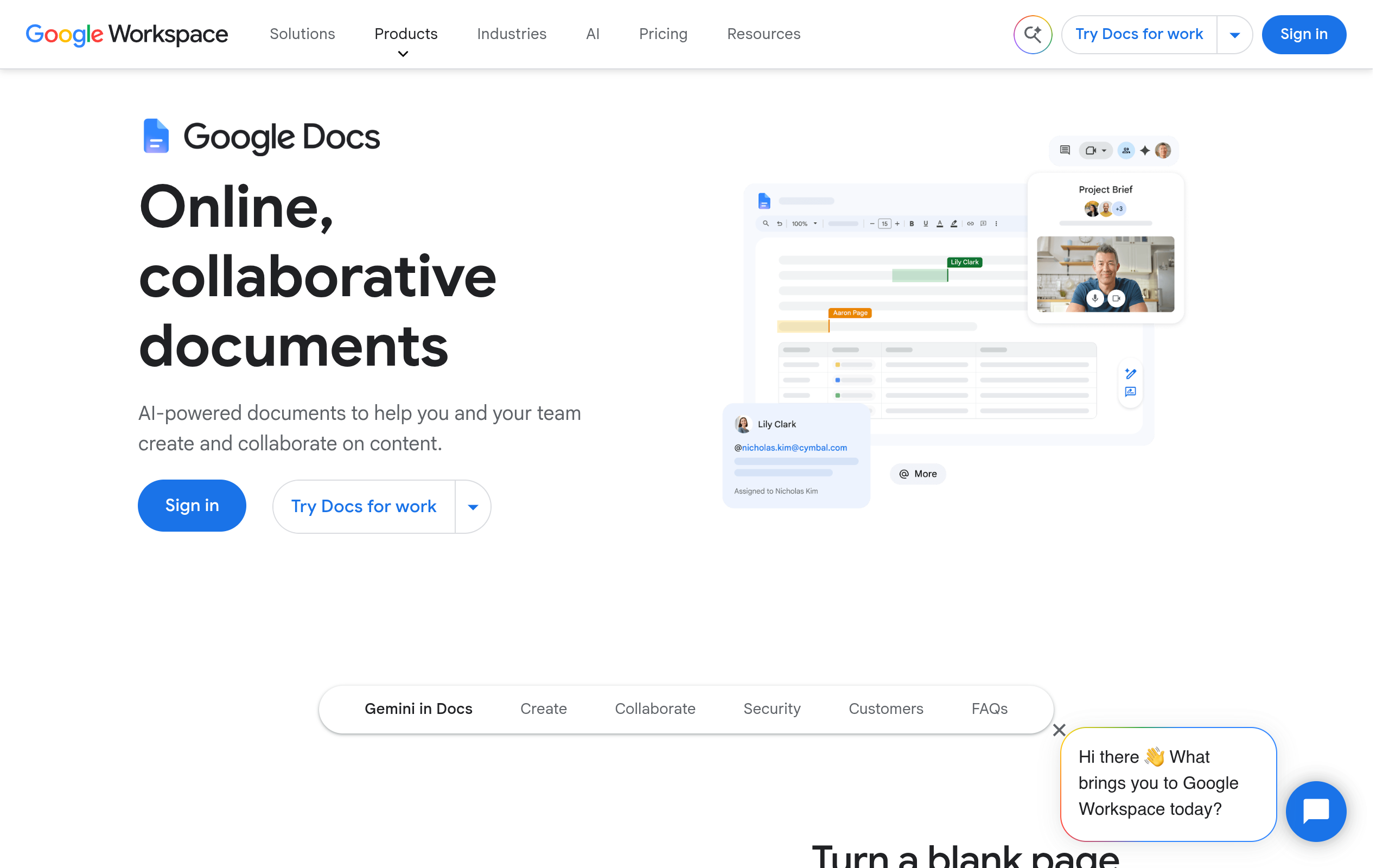
Google Docs voice typing is the simplest tool in this guide. It is built into Google Docs, and it is completely free with any Google account. You do not need to install anything. There is no minute limit, no file limit, and no setup. You open a Google Doc, speak into your microphone, and your words appear as text. It works in more than 100 languages for dictation. It works on desktop Chrome, Edge, and Safari. It does not work in Firefox.
Voice typing is dictation, not transcription. That is an important difference. You cannot upload an audio file to Google Docs and get a transcript. You have to speak live, into your microphone, while Google Docs is open. There is a workaround. You can play audio through your speakers and let the microphone hear it, but the quality depends on how clear the sound is, and it is lower than a real transcription tool. Voice typing also has no speaker labels, no timestamps, and no summary. It is one person speaking, and the words appear on the page.
But for what it does, it is perfect. If you want to write an essay, a story, a blog post, or a report by speaking instead of typing, voice typing is free and it works well. You can say "period" and "comma" to add punctuation, and you can say "new line" to start a new paragraph. Voice commands are in English only, but dictation works in more than 100 languages. On mobile, the Google Docs app does not have voice typing built in. You can use your phone keyboard microphone to dictate instead.
Key Features:
- Completely free, with no minute limit and no file limit
- Built into Google Docs. No install, no setup, and no credit card
- Works in more than 100 languages for dictation
- Voice commands add punctuation and line breaks, but only in English
- Nothing to learn and nothing to pay for
Best for: Anyone who wants to write by speaking, for free, with no setup, and who does not need to transcribe an old recording
Free plan: Completely free. There is no paid version of voice typing. It is included in Google Docs with any free Google account. There is no minute limit and no file limit. Check the official Google Docs support page for current details.
How to Use Google Docs Voice Typing Step by Step:
- Open docs.google.com and open a document, or create a new one.
- Click Tools in the top menu, then click Voice typing. Or press Ctrl plus Shift plus S on Windows, or Cmd plus Shift plus S on Mac.
- Click the microphone icon. Allow microphone access if your browser asks for it.
- Speak clearly. Say "period" and "comma" for punctuation, and "new line" for a new paragraph.
- Fix any mistakes in the document by hand. Voice typing is good, but it still makes mistakes.
Watch out for: You cannot upload an audio file. Voice typing only works live, while you speak. There are no speaker labels, no timestamps, and no summary. And it does not work in Firefox. If you need to transcribe a recording you already have, use TurboScribe instead. If you want to write by speaking, this is the best free tool in this guide.
A Free Workflow That Works
You do not need to pay for transcription. You need a simple routine. Here is a free workflow that covers almost everything, using only the free plans in this guide.
For meetings: Use Fathom. It records and transcribes unlimited meetings for free. Connect your calendar once, and it joins every call. After the meeting, read the summary and search your old calls. If your meeting is on a platform Fathom does not support, use Otter.ai for meetings under 30 minutes, or Fireflies.ai if you only need a few hours of history.
For uploaded files: Use TurboScribe. You get 3 free files a day, each up to 30 minutes. That covers most lectures, interviews, podcasts, and voice notes. Upload your most important file first, because free files wait longer in the queue. If you have more than 3 files a day, save the rest for tomorrow, or use your 45 free minutes on Rev, or your 120 minutes on Notta for very short clips.
For writing by speaking: Use Google Docs voice typing. It is completely free and has no limit. Open a document, turn on voice typing, and speak your draft. Then fix the punctuation and the mistakes by hand.
For testing a paid tool: Use your trial minutes well. Sonix gives you 30 minutes, Happy Scribe gives you 10 minutes, and Transkriptor gives you 90 minutes. Use them on your hardest real file, not on an easy test. If a paid tool gets your hardest file right, it may be worth paying for later.
For privacy: Use Whisper on your own computer. Nothing is uploaded, and there is no minute limit. It needs technical setup, but it is the only option in this guide that keeps your audio completely on your device.
Here is a real example. A student has a 1-hour lecture on Monday, a 30-minute group meeting on Wednesday, and an essay to write on Friday. She records the lecture with TurboScribe, which gives her a transcript with timestamps. She uses Fathom for the group meeting, and she reads the summary after the call. She writes her essay by speaking into Google Docs voice typing. She pays nothing, and she has notes for all three jobs.
Free vs Paid: Do You Need to Pay?
Most people do not need to pay for transcription. The free plans in this guide cover a student, a freelancer, a small team, and a casual creator. You need to pay only in three cases.
1. You transcribe for hours every week. If you transcribe 10 hours a week, every week, you will hit the free limits. Fathom has no limit for meetings, and TurboScribe gives you up to 90 minutes a day, so even heavy users can stay free for a long time. But if you have 5 long files a day, or you need to keep months of meeting history, a paid plan will save you time. Transkriptor Pro at $8.33 a month billed yearly is one of the cheapest paid plans for 2,400 minutes a month. TurboScribe Unlimited at $10 a month billed yearly is also a good deal for files.
2. You need a feature the free plan does not include. Downloads on Fireflies, advanced summaries on Fathom, a long recording on Descript, or a transcript in several languages at once. If you need those features every day, paying is faster than working around the limit.
3. You need a perfect transcript for professional work. Human transcription from Rev costs $1.99 a minute. It is expensive, but it is the right choice for a court case, a legal deposition, or a published interview, where a wrong word can cause real harm.
If none of those three cases apply to you, stay on a free plan. You lose nothing, and you get a full transcript for free every day.
Mistakes to Avoid
1. Thinking a free trial is a free plan. A trial gives you minutes once. A free plan gives you minutes every month. Sonix, Happy Scribe, and Transkriptor are trials. They are useful for testing, but they are not free plans. Use them to test, not for your weekly work.
2. Letting old recordings pile up in Fireflies. The free plan stores only 400 minutes of meetings for your whole team. When you pass 400 minutes, your oldest recordings disappear. Check your oldest meetings and delete or export them before they roll off.
3. Recording a long call on Otter's free plan. Otter stops each meeting at 30 minutes. If you need to record a 60-minute call, use Fathom instead. Fathom has no meeting limit on the free plan.
4. Trying to transcribe a long lecture on Notta for free. Notta stops every recording at 3 minutes on the free plan. A 40-minute lecture will be cut after 3 minutes. Use TurboScribe for lectures, which allows 30 minutes per file.
5. Expecting a perfect transcript. AI transcription is about 95% accurate on clear audio, and worse on bad audio. It often gets names, dates, and technical words wrong. Always read the transcript and fix the important parts before you share or publish it.
6. Wasting your free trial on an easy file. If you have 30 free minutes on Sonix, do not upload an easy file to see if it works. Upload your hardest real recording. That is the only test that tells you whether the tool is worth paying for.
7. Starting a long recording without checking the limit. TurboScribe stops at 30 minutes a file. Descript gives you only 1 media hour a month. Rev gives you only 45 minutes a month. Plan your recording around the free limit, or split a long file into 30-minute parts.
8. Building your weekly routine on a trial. Sonix, Happy Scribe, and Transkriptor give you minutes once, and then they are gone. If you use them every week, you will run out in the first week. Use a permanent free plan for daily work, and keep trials for testing.
Frequently Asked Questions
1. Can I really transcribe for free without paying?
Yes. Nine tools in this guide have a permanent free plan. Fathom gives you unlimited free meeting transcription. TurboScribe gives you 3 free files a day. Otter.ai gives you 300 free minutes a month. Google Docs voice typing is completely free with no limit. You can transcribe for free every month, as long as you stay inside the free limits.
2. What is the difference between transcription and text to speech?
Transcription turns speech into text. You speak or play a recording, and you get written words. Text to speech turns text into speech. You type words, and the tool reads them out loud. They are opposite directions. This guide covers transcription. Our earlier guide, Best Free AI Text to Speech Tools in 2026, covers text to speech.
3. Which free tool is best for meetings?
Fathom. It gives you unlimited recordings, unlimited transcription, and unlimited storage for free. Otter.ai is also good if your meetings are under 30 minutes, and Fireflies.ai is good if you have only a few meetings a week.
4. Which free tool is best for uploaded audio files?
TurboScribe. It gives you 3 free files a day, each up to 30 minutes, with no credit card. It works in more than 98 languages and is powered by Whisper. For one short file, you can also use Rev's 45 free minutes a month.
5. Is 300 minutes a month on Otter.ai enough?
For most people, yes. 300 minutes is 5 hours. That is about 10 meetings of 30 minutes each. But remember the second limit. Each meeting stops at 30 minutes on the free plan. If your meetings are longer than 30 minutes, Otter will cut them off, and Fathom is a better choice.
6. Why does Notta stop at 3 minutes on the free plan?
Notta's free plan gives you 120 minutes a month, but it caps every recording at 3 minutes. That is how the free plan is designed. It is really a demo, not a working plan. You can transcribe short voice notes, but you cannot transcribe a real meeting or lecture on the free plan. You need Pro for that.
7. What happens when Fireflies storage fills up?
Fireflies gives you unlimited transcription, but only 400 minutes of storage for your whole team. When you pass 400 minutes, your oldest recordings roll off and disappear. To stop that, delete old meetings you do not need, or pay for Pro, which raises storage to 8,000 minutes per seat.
8. Are Sonix, Happy Scribe, and Transkriptor really free?
No, not for ongoing use. They give you a one-time trial. Sonix gives you 30 minutes, Happy Scribe gives you 10 minutes, and Transkriptor gives you 90 minutes. After that, you must pay. They are useful for testing, but they are not free plans. Do not build your weekly routine on a trial.
9. Can I transcribe a long lecture or podcast for free?
Yes, if you split it up. TurboScribe gives you 3 free files a day, each up to 30 minutes. Split a 2-hour lecture into 30-minute parts, and you can transcribe it over two days. Or use Fathom to record it live, with no time limit. Or use Whisper on your own computer, with no limit at all.
10. How accurate is free AI transcription?
On clear audio, with one speaker and no background noise, AI transcription is about 95% accurate. On bad audio, with accents, noise, or many people talking at once, it is worse. It often gets names and technical words wrong. Always read your transcript and fix the important parts by hand. If you need a transcript that must be perfect, pay for human transcription from Rev at $1.99 a minute.
11. Can I transcribe in other languages for free?
Yes. TurboScribe works in more than 98 languages. Fireflies works in more than 100 languages. Notta works in 58 languages. Fathom works in 38 languages. Rev's free plan is English only, but its paid plans cover more languages. Happy Scribe covers more than 150 languages, but only with a 10-minute trial for files.
12. Is my audio private on free plans?
It depends on the tool. Most tools upload your audio to their servers to transcribe it, and they may use it to improve their models. Read the privacy policy before you upload anything sensitive. The only tool in this guide that keeps your audio completely private is Whisper, because it runs on your own computer and nothing is uploaded.
13. Can I get timestamps and speaker names for free?
Yes. Almost every tool in this guide gives you speaker labels and timestamps on its free plan. Otter, Fireflies, Fathom, TurboScribe, Descript, Rev, and Transkriptor all do. Google Docs voice typing does not, because it is dictation for one person, not a meeting tool.
14. Can Google Docs transcribe an audio file?
No. Google Docs voice typing only works live, while you speak. You cannot upload an audio file to Google Docs. You can play a recording through your speakers and let the microphone hear it, but the quality is lower than a real transcription tool. For files, use TurboScribe instead.
15. What is Whisper, and do I need to be technical to use it?
Whisper is a free, open-source speech recognition model made by OpenAI. It is the engine inside several tools in this guide. You can run it on your own computer for free, with no minute limit and complete privacy. But you need to install Python and ffmpeg, and run it from the command line. If that feels too technical, use TurboScribe, which is powered by Whisper and needs no setup, or Whisper Web in your browser.
16. Which tool is best for students?
TurboScribe for lecture recordings, Fathom for group meetings, and Google Docs voice typing for writing essays by speaking. TurboScribe gives you 3 free files a day, which covers most lectures. Fathom gives you unlimited free meeting notes. And Otter.ai gives students and teachers 20% off Pro if they need more.
17. Do I need to pay if I transcribe every day?
Probably not. Fathom gives you unlimited free meeting transcription, so daily meetings are free. TurboScribe gives you 3 free files a day, so daily files are free. Google Docs voice typing is free with no limit. You only need to pay if you have more than 3 long files a day, or you need a feature that is not on the free plan, like downloads on Fireflies or advanced summaries on Fathom.
Related Guides
- Best Free AI Text to Speech Tools in 2026 — the opposite direction. Turn your text into a natural voice for videos, podcasts, and narration.
- Best AI Tools for Students in 2026 — the best free AI tools for study, notes, homework, and research.
- Best Free AI Tools for Business in 2026 — free AI tools for meetings, emails, marketing, and running a small business.
Final Thoughts
Free AI transcription tools in 2026 are good enough for real work. You do not need to pay to turn a meeting, a lecture, or a voice note into text. You only need to pick the right tool for what you are doing, and to know its limits before you start.
Here is the simple answer. If you record meetings, use Fathom. It gives you unlimited free transcription with no minute limit and no storage limit. If you have audio or video files, use TurboScribe. It gives you 3 free files a day, each up to 30 minutes. If your meetings are short and you want live transcription with search, use Otter.ai. If you want to write by speaking, use Google Docs voice typing. That is all most people need.
Remember the two warnings. First, Sonix, Happy Scribe, and Transkriptor are trials, not free plans. Use them to test, not for daily work. Second, check the per-recording limit, not just the monthly total. Notta's 120 minutes a month means nothing if every recording stops at 3 minutes.
Start with Fathom and TurboScribe. Use them for two weeks. Then decide what is missing. Most people find that two free tools cover everything they need. And when you do need to pay, pay for the cheapest plan that solves your one real problem, not for the tool that looks the best.
Your meetings, your lectures, and your voice notes are full of useful words. Stop typing them by hand. Let the AI write them down, and use your time for the work that matters.